
Help centre Admin
Admin guide
What you do: keep the team and the project codes set up: invite people in any role, change names and roles, deactivate people who leave, add project codes, and keep the lists technicians pick from. You can also approve and reject lines on every code, and reopen a line or route approved by mistake.
You see the team, every project code and assignment, every code's lines to review, and every route plan (read only). The Coordinator role and the route plan are off by default: if your organisation plans routes and you don't see them, ask Crewstel to switch them on.
1. Invite someone
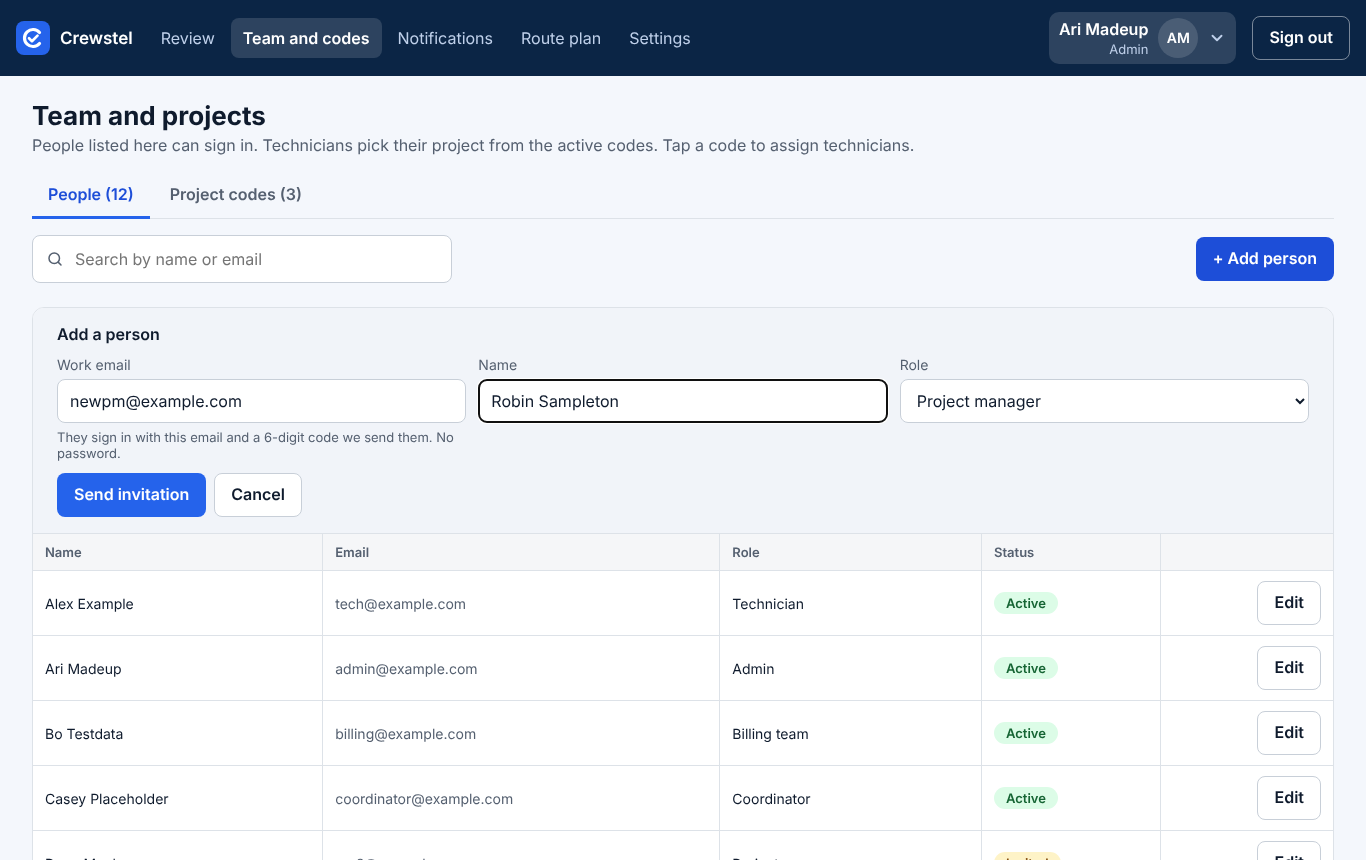
- Sign in: the app opens on Team and codes. Tap + Add person.
- Type their Work email and Name, and pick their Role (Technician to start with).
- Tap Send invitation. They get an email with how to sign in; they show as Invited until they do.
2. Change a role, or deactivate someone who left
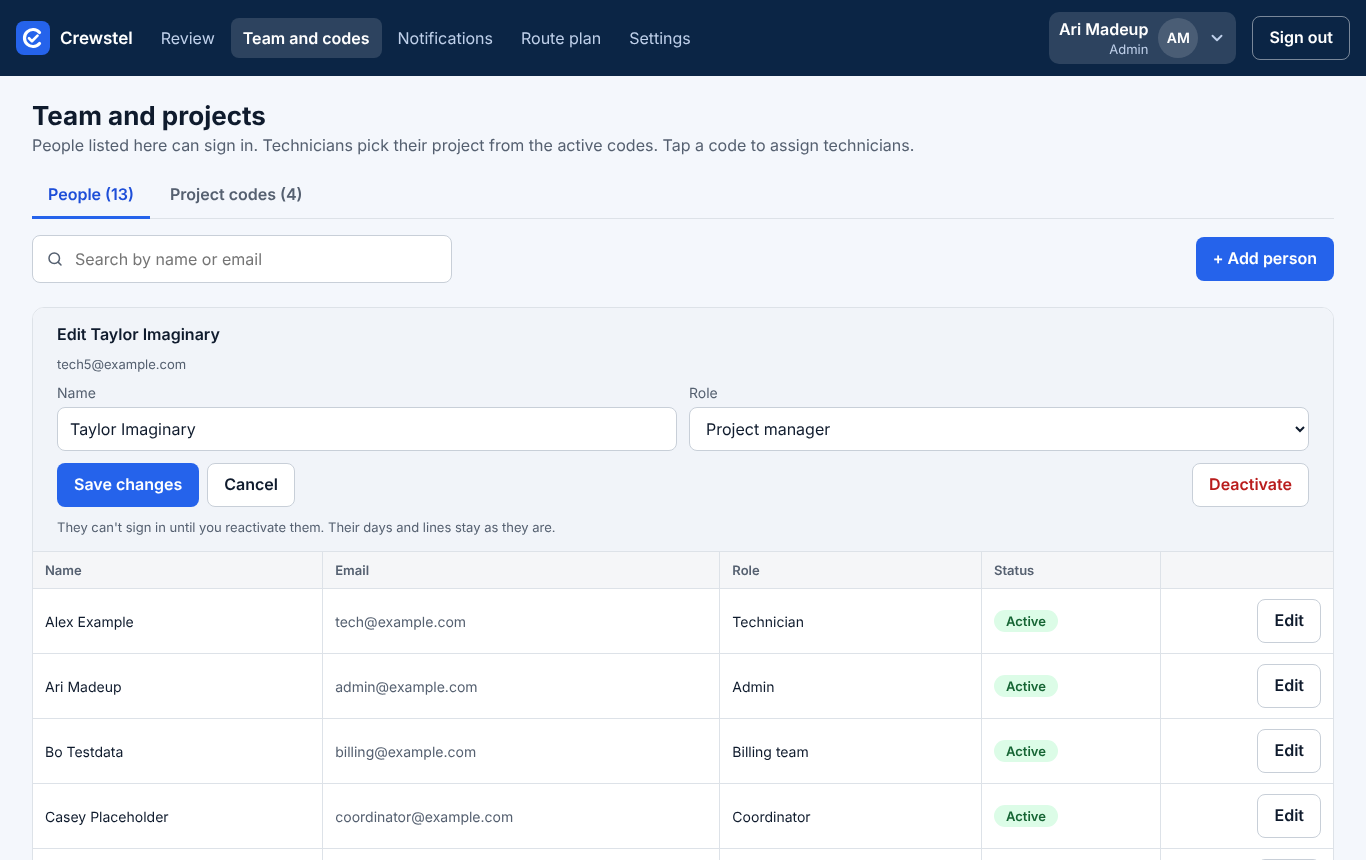
- Tap Edit on the person.
- Change the Name or Role and tap Save changes.
- Or tap Deactivate: they can't sign in until you reactivate them. Their days and lines stay as they are.
You can't deactivate yourself, and there is always at least one admin.
3. Add a project code
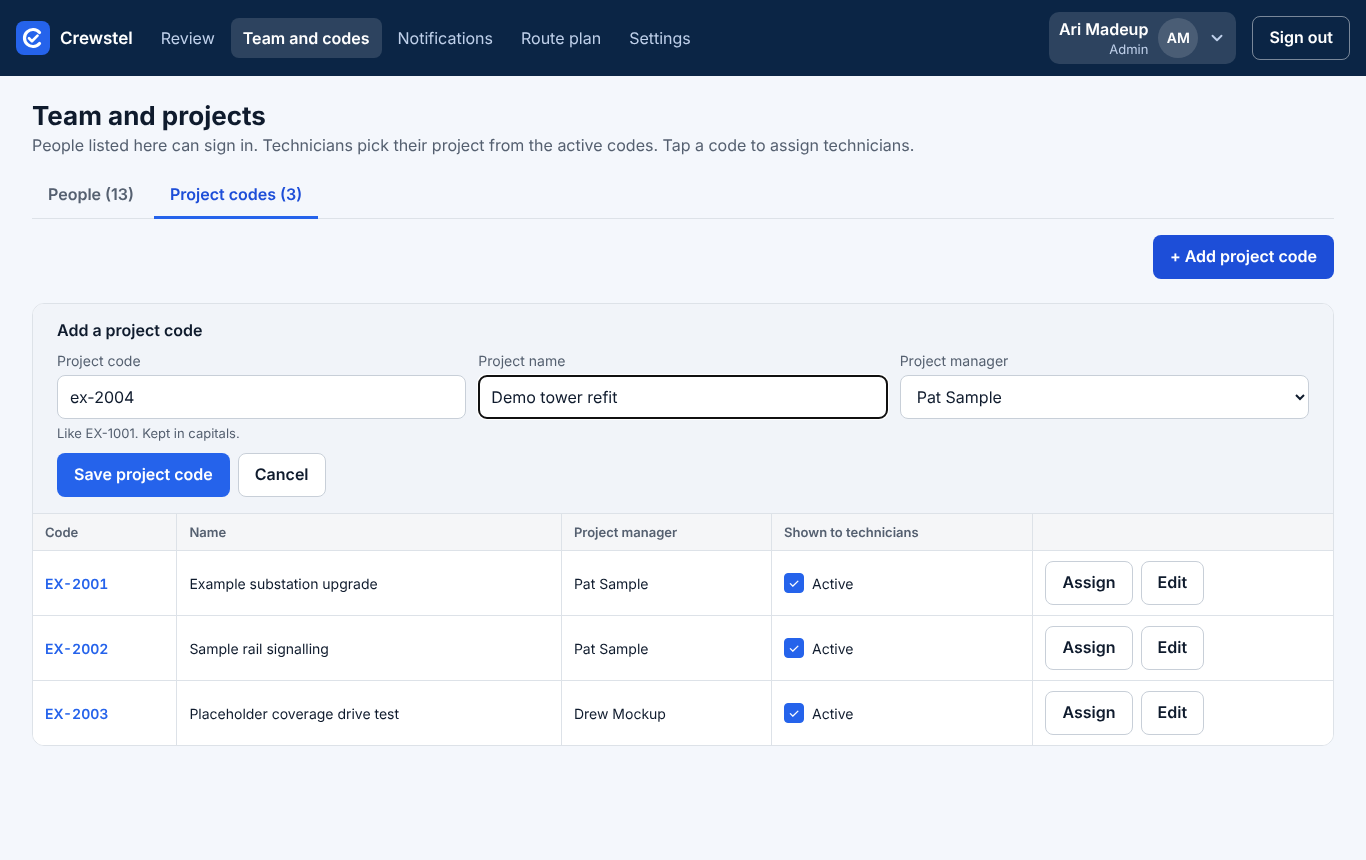
- Tap Project codes, then + Add project code.
- Type the Project code (kept in capitals) and Project name, and pick the Project manager.
- Tap Save project code. Then tap Assign on it to add technicians.
4. Keep the lists technicians pick from
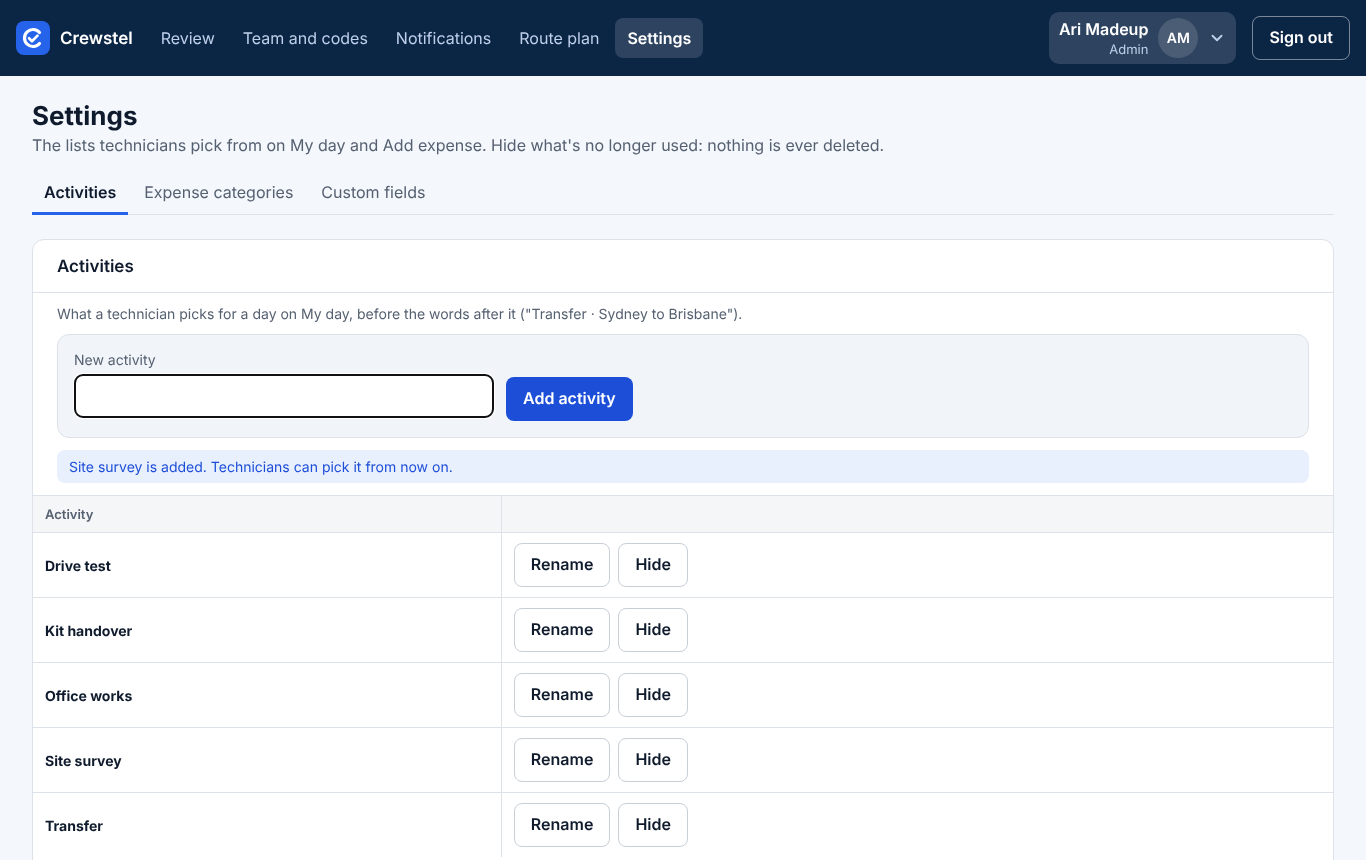
- Tap Settings. Activities are what a technician picks for a day; Expense categories are for expenses.
- Type a new one and tap Add activity. Technicians can pick it from now on.
- Rename or Hide what's no longer used. Nothing is ever deleted: lines already sent keep the name they were sent with.
5. Reopen a line approved by mistake
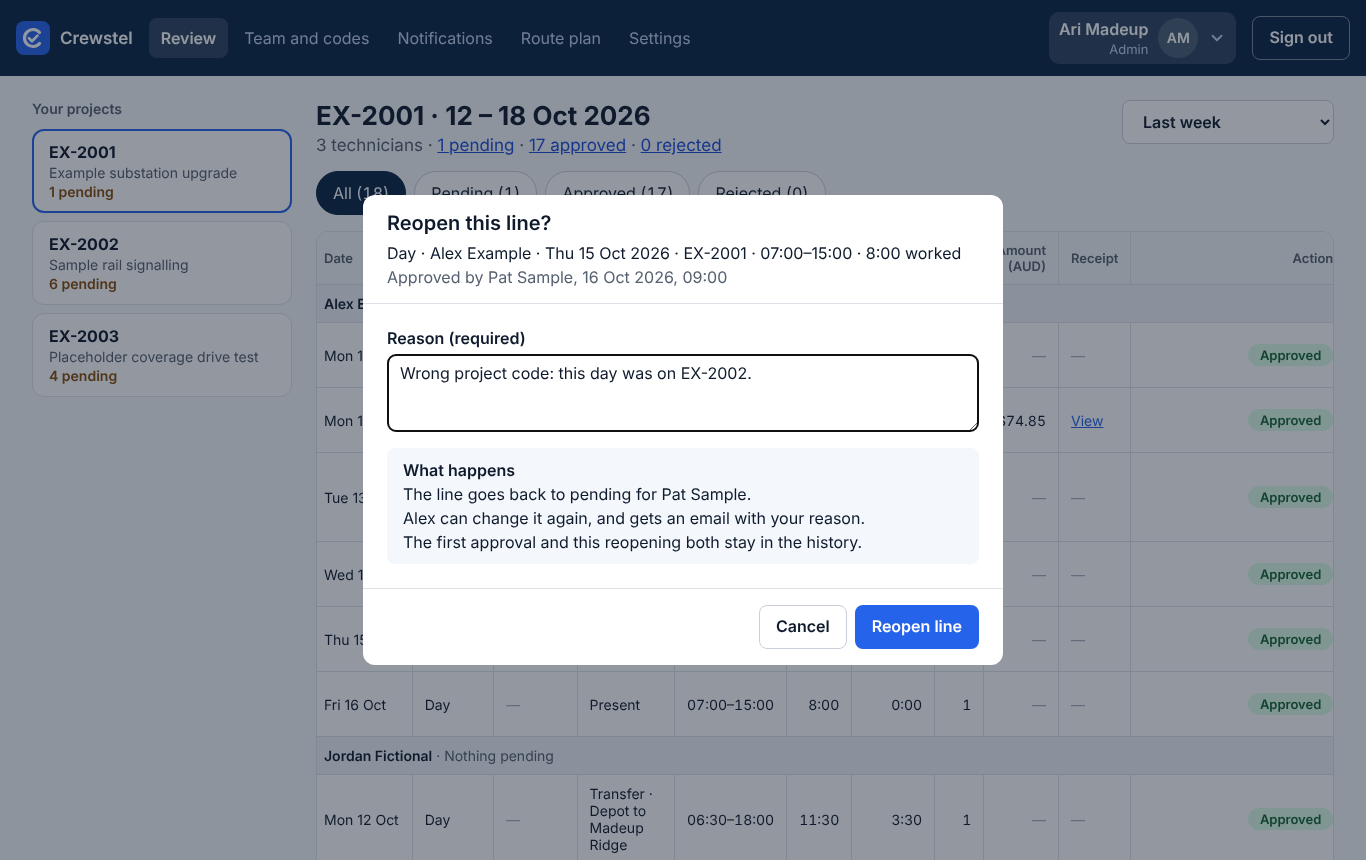
- Tap Review and find the line: pick the project and week.
- Tap its Approved status, then Reopen.
- Type the reason and tap Reopen line.
The line goes back to pending for its project manager; the technician can change it and gets an email with your reason. The first approval and the reopening both stay in the history. A route works the same way: Route plan, tap the approved route, Reopen, reason, Reopen route.
If something goes wrong
- No signal. You see "No signal, try again". Nothing you typed is lost; try again when you're back online.
- Wrong project code on an approved line. Reopen it (task 5) and say the right code in the reason. The technician changes it and sends it again.
- A rejected line. It's already back with the technician; there is nothing to reopen.
- A locked line. Lines in an invoiced month can't be reopened or changed.
- "They already have an account". That email is already in the team: find them with the search and use Edit.
- Someone can't sign in. Check they are Active or Invited (not Deactivated) and that the email is right.
Pictures are from the app with made-up people and projects, never real ones. All guides